Find NCRs
Project NCR

By selecting Project NCRs from the popup window you will be redirected to the ETHOS Project NCRs page.
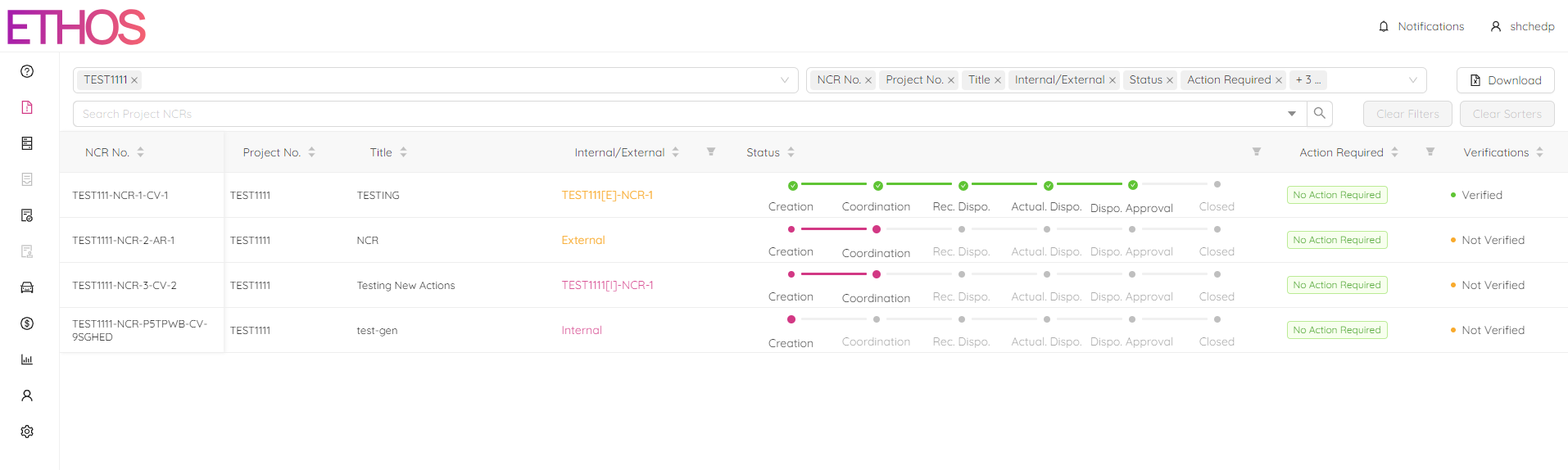
This page is where you can view all your NCRs. The main page in Project NCRs displays high-level information about each NCR for the selected projects such as:
- The project number and title of each NCR
- The stage each NCR is currently in
- Whether or not any action is currently required for each NCR
- The verification status of each NCR
You can change which projects you will see NCRs for as well as what information is displayed by selecting/deselecting project numbers and column names at the top right of the page.
To sort NCRs based on certain column click on the arrow next to the column title.
To remove all sorters across all columns, click on the Clear Sorters button.
To search the NCRs based on certain criteria click on the search bar titled Search Project NCRs at the top of the page, and type the search criteria. NCRs including that information will be filtered.
To filter the NCRs based on criteria such as status, verification etc. click on  icon next to the column you wish to filter from.
To remove any applied filters, click on the icon and select Reset or click on the Clear Filters button to clear all filters.
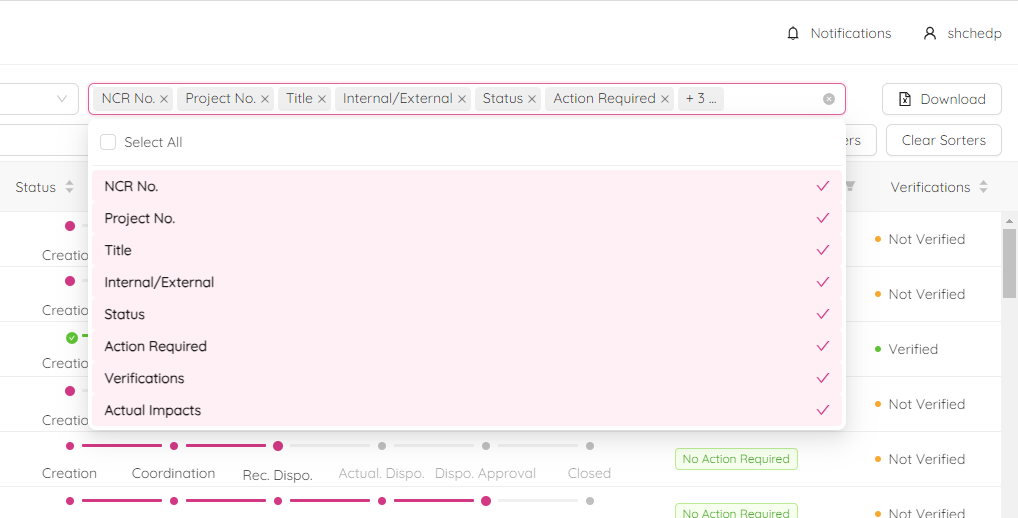
To show more NCR's attributes in the table view click on the filter bar next to the search bar and toggle on or off the categories you wish to see.
NCR Single View
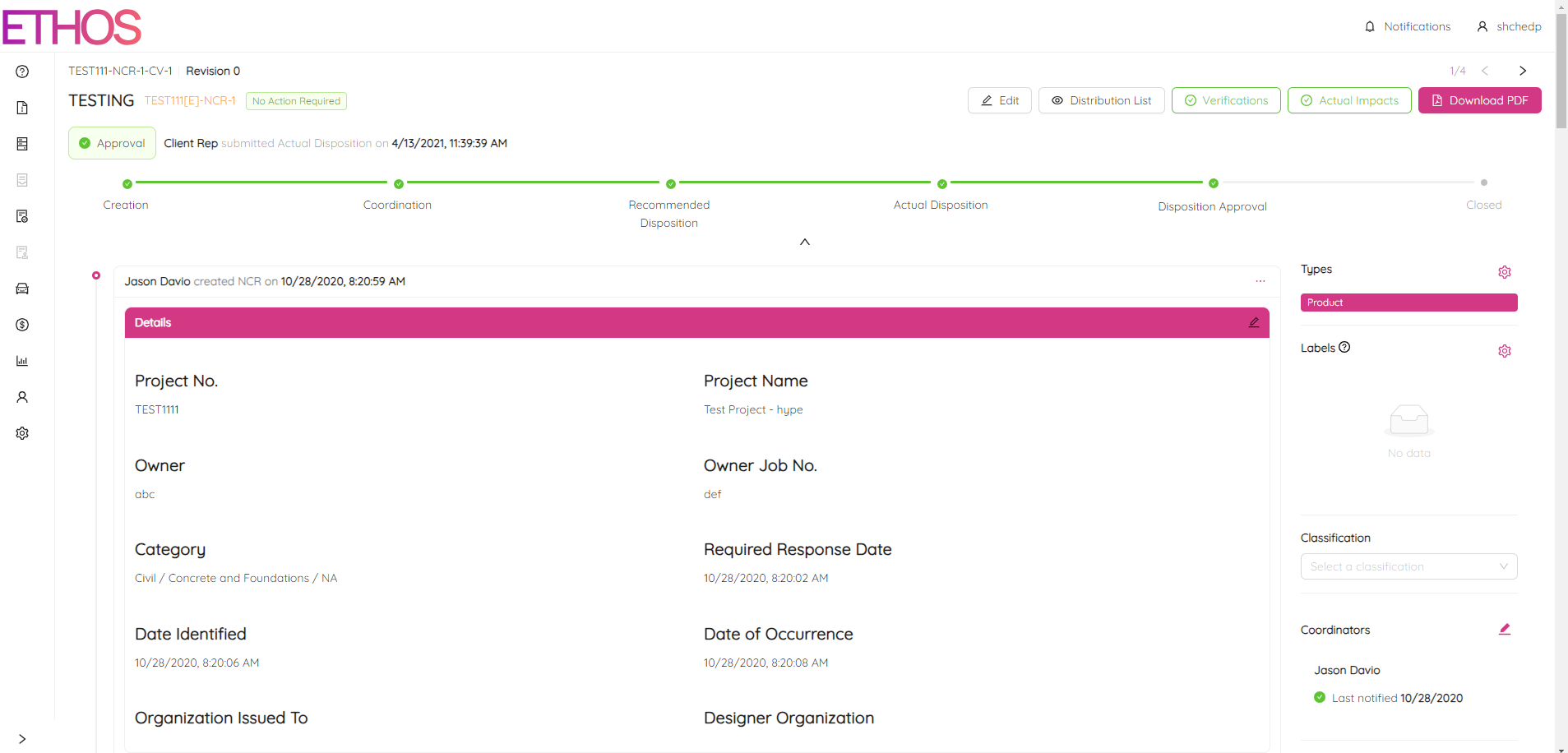
By clicking on a NCR you will be redirected to the NCR Single View page. This page is where you can view all the details of the selected NCR as well as each stage the NCR has gone through.
My NCRs

By selecting My NCRs from the popup window you will be redirected to the ETHOS My NCRs page.
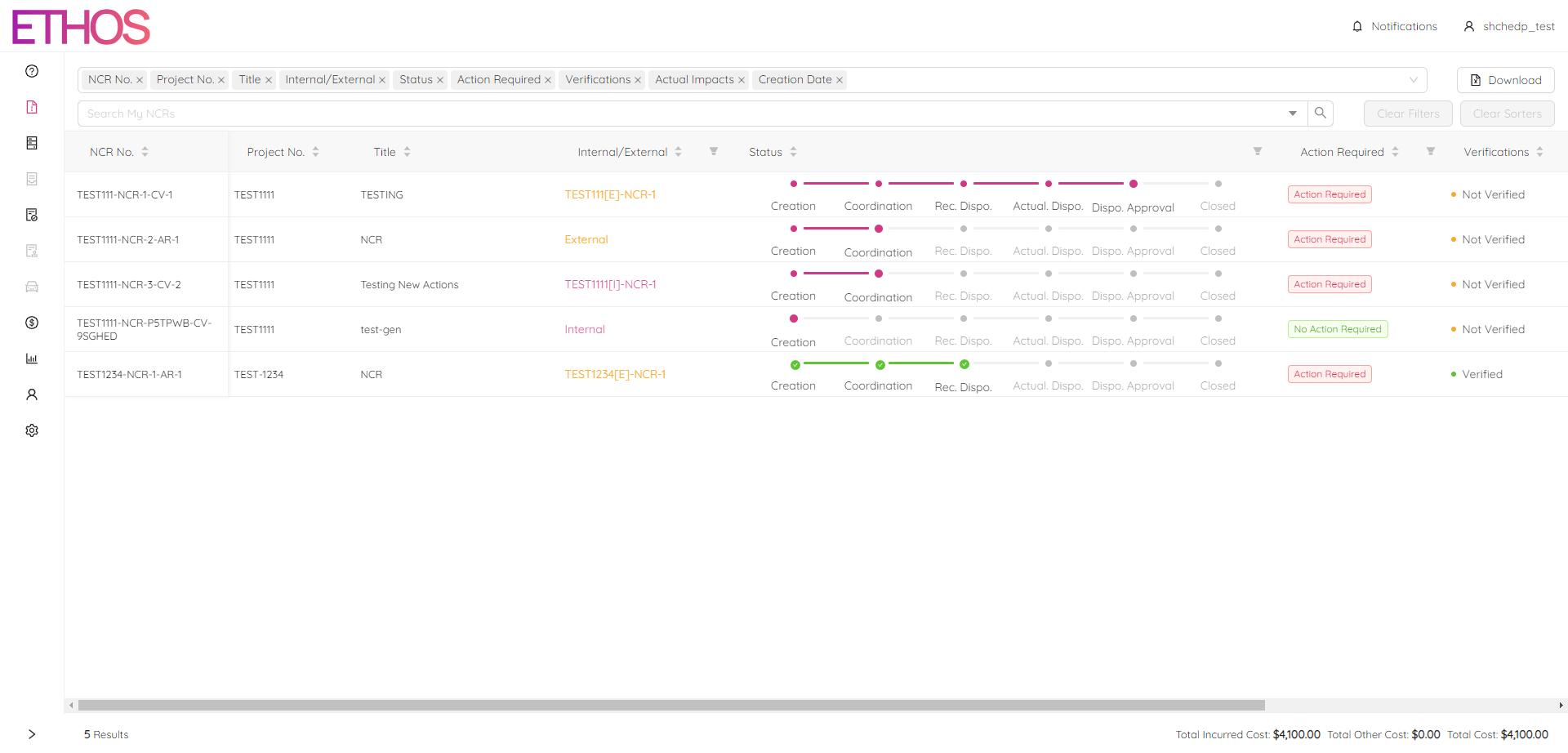
The My NCRs page is the same as the Project NRCs page except only NCRs that you are associated with will be displayed. This is great for easily checking if any NCRs require your attention.